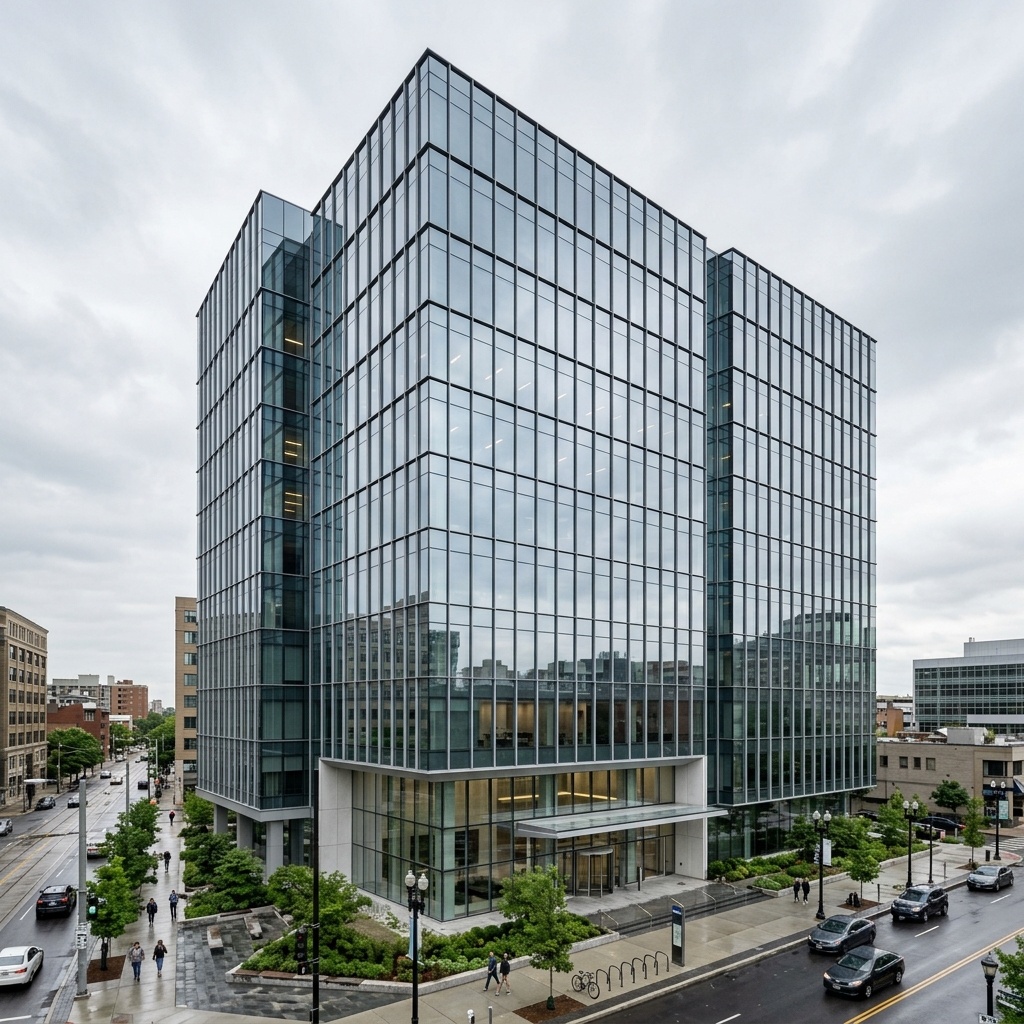
How do you stop AI renders from changing your building's geometry?
You cannot fully stop it, but you can constrain it and catch it. Use strong adherence controls, a clean high-contrast source or direct BIM/CAD integration, then check each render beside the source model for load path, openings, scale, buildability and site. Higher adherence lowers the hallucination rate; it does not zero it.
There's a quiet asymmetry at the heart of AI rendering. The tools have gotten extraordinary at making images that look right — atmospheric light, convincing materials, a sky that sells the mood — and they remain fundamentally indifferent to whether the building in the image is the building you designed. A diffusion model generates pixels that are statistically plausible. It does not read your geometry as ground truth. It reads it as a suggestion.
That gap is invisible until a client points at a render in a meeting and says, "I love that glass corner." If you designed a glass corner, wonderful. If the AI invented it, you now own a decision you never made — and unwinding it costs you credibility, sometimes fees, and always time. The fix isn't more caution in the abstract. It's a checklist specific enough that you catch the invented corner before anyone else falls in love with it.
Why renderers hallucinate geometry at all
It helps to know what you're fighting. A diffusion renderer takes your source — a viewport capture, a massing model, a line drawing — and uses it as a conditioning signal while it generates an image from noise. The strength of that conditioning is a dial, not a guarantee. Turn adherence down and the model takes liberties: it smooths, it embellishes, it fills ambiguity with whatever it has seen most often in training. Turn adherence up and you constrain it, but you also fight its instinct to "fix" anything that looks unresolved.
The practical consequence is that hallucinations cluster in predictable places — wherever your source was ambiguous, low-contrast, or unusual. A clean, high-contrast model with crisp edges hallucinates less. A murky screenshot of a complex façade hallucinates more. Knowing the failure surface tells you where to aim your attention, which is the whole point of a checklist: not to look harder at everything, but to look hardest where the model is most likely to lie.
The renderer isn't trying to depict your building. It's trying to produce a convincing image — and those are not the same job.
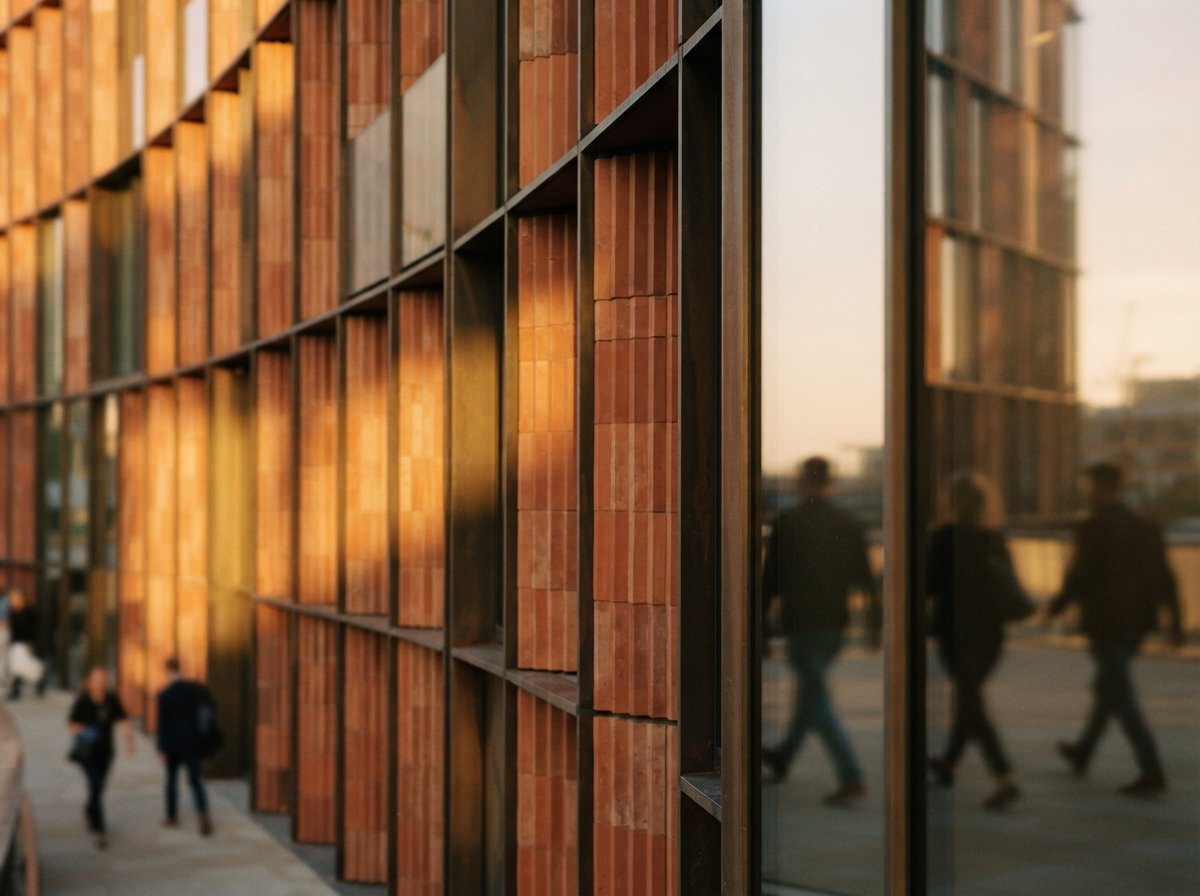
The five failure modes that actually bite
After enough renders go out and come back with red ink, the errors sort themselves into a short list. These five account for the overwhelming majority of the geometry problems that survive into a presentation.
1. Invented or deleted structure
The headline failure. The AI adds a column, a beam, a canopy, a mullion run — or quietly removes one. Watch the load path: any vertical support that appears, vanishes, or relocates is a hallucination until proven otherwise. Cantilevers are a special hazard; renderers love to extend a slab into a dramatic overhang you never drew, because dramatic overhangs are well represented in their training data.
2. Drifted openings and grid breaks
Windows and doors migrate. A renderer will subtly re-space a fenestration pattern to make it "balanced," breaking your structural grid in the process. Count openings against your elevation. Check that sill and head heights line up across a bay. A window that has slid half a metre off-grid reads as fine in the image and as a problem in coordination.
3. Scale and proportion slips
The most insidious, because nothing looks broken. Floor-to-floor heights compress, a door grows to a storey-and-a-half, a handrail sits at hip height on a child. Drop a known dimension into the scene mentally — a standard door is ~2.1 m, a guardrail ~1.1 m — and sanity-check everything against it. If the people in the render look wrong, the building is wrong.
4. Material and assembly fiction
The AI specifies a building you can't build: frameless glass spanning impossible distances, masonry that floats, a roof-to-wall junction with no plausible detail. These aren't always your problem to solve in a concept image — but if the material reads as a commitment, treat it as one. A client who is sold a seamless travertine monolith will not enjoy learning about expansion joints later.
5. Context and site invention
Renderers fabricate neighbours, trees, slopes and skylines with abandon. Usually harmless, occasionally not: an invented adjacent building can imply a setback or a right-to-light condition that doesn't exist, and a flattened slope can erase the very site constraint your design responds to. If the site is part of the argument, the site needs checking too.
The pre-presentation pass
Here's the routine. It's deliberately fast — if QA takes longer than the render, nobody runs it. Put the AI output beside your source model and go in this order, because it moves from most-expensive-error to least.
1. Load path — trace every vertical support top to bottom; flag anything added, moved or missing. 2. Openings — count and align windows/doors against the elevation; confirm the grid holds. 3. Scale — drop a known dimension (door, guardrail, person) and check proportions against it. 4. Buildability — ask of each hero material and junction, "could we detail this?" Flag anything that reads as a promise you can't keep. 5. Site — verify neighbours, levels and orientation aren't inventing or erasing a real constraint. Anything flagged gets fixed, re-rendered, or annotated as indicative before the file is shared.
Two habits make the pass dramatically more effective. First, always keep the source visible. Hallucinations are obvious in comparison and nearly invisible in isolation; the brain accepts a coherent image far too readily on its own. Second, fix upstream when you can. If a particular element hallucinates every time, the answer usually isn't more retouching — it's a cleaner source, higher contrast on the offending area, or a higher adherence setting. QA tells you what is breaking; your render settings are where you stop it breaking.
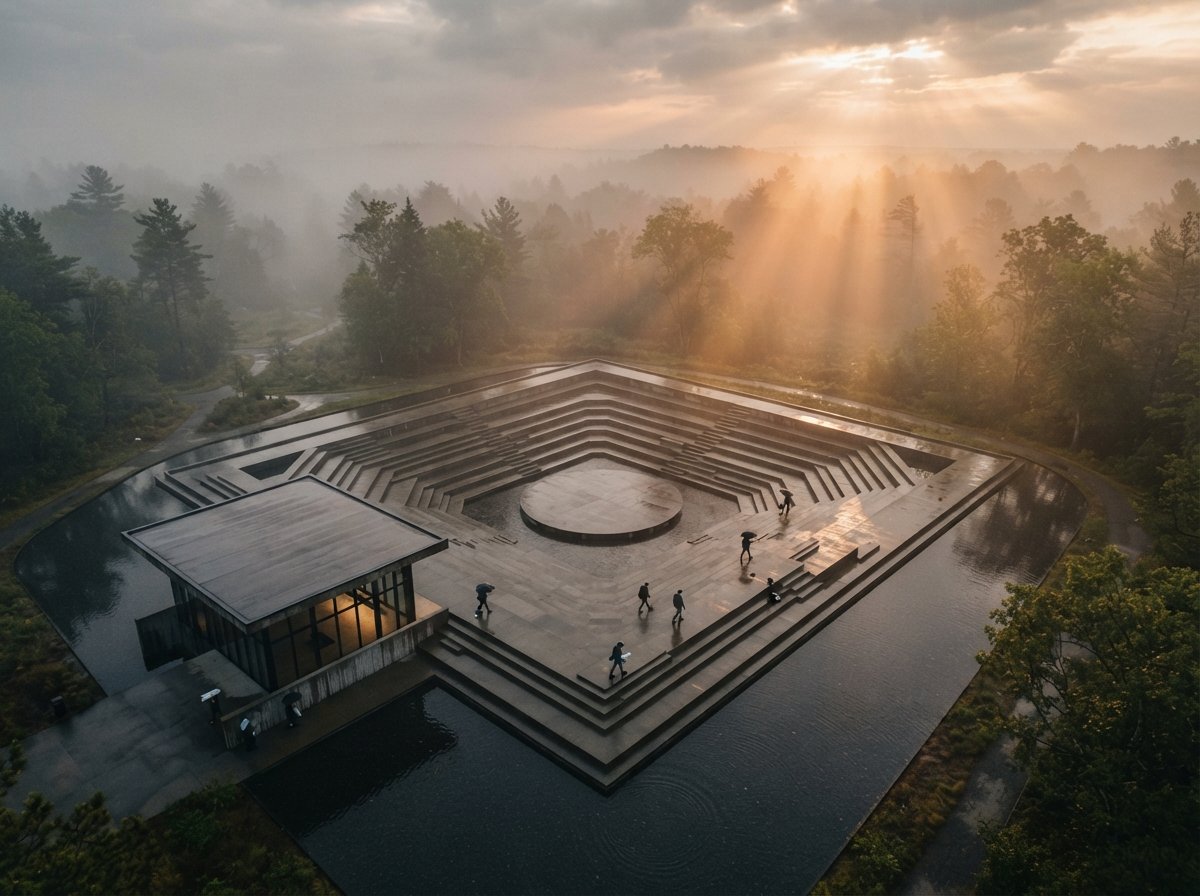
Build the guardrails into the tool, not just the review
A checklist is the last line of defence, not the only one. The same diligence applies upstream, in how you set the render up. Tools with strong model-adherence controls — a geometry-override or departure slider, or a ControlNet stage constraining output to your edges — let you trade a little image flair for a lot of fidelity, and for client work that trade is almost always worth it. Renderers with direct BIM/CAD integration start from your actual geometry rather than a screenshot of it, which removes a whole class of ambiguity before the model ever runs.
None of that makes the QA pass optional. Higher adherence lowers the hallucination rate; it does not zero it. The discipline that separates a studio that uses AI well from one that gets embarrassed by it isn't access to better tools — both have the same tools now. It's the unglamorous habit of looking, in a fixed order, every single time, before the image becomes someone else's expectation.
Our take: treat every render as a claim until you've checked it
The industry has accepted the warning — "AI needs human revision" — and skipped the method, which is how hallucinated buildings keep ending up in real presentations. The reframe that fixes it is small and ruthless: a render is not a picture, it's a claim about your building, and an unchecked claim is a liability with good lighting. Run the five-point pass. Keep the source open beside it. Fix the recurring failures at the settings level, not the retouch level. Do that and AI rendering stops being a thing you apologise for in meetings and becomes what it should be — the fastest way to show a client something true.
Pressure-test the workflow so your renders survive contact with a real client. Join the studio newsletter for the field notes, or read our companion piece on the honest guide to AI rendering for architects.
Guidance based on common failure modes observed across diffusion-based architectural renderers and 2026 industry coverage. Specific tool behaviour varies by version and settings; verify against your own workflow. No affiliate relationship with any tool or platform named.